Visualizing Data
VaRA-TS allows you to visualize the data generated by experiments in various plots and tables. This guide explains how plots and tables can be generated via our command line tools. You can also write your own plots and tables.
Generating Plots and Tables
Plots and tables can be generated with the tools vara-plot and vara-table. The command line interface for these tools consists of four parts which are illustrated in the figure below:
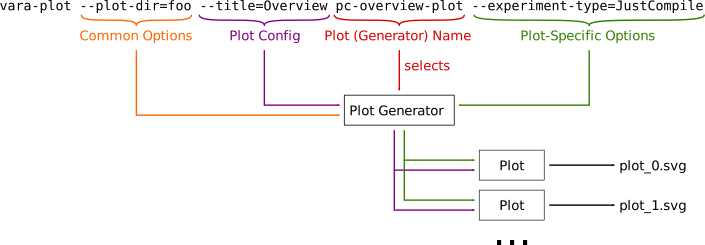
Common options: handle functionality common to all plots or tables, like file format
Plot or table config: for tuning visual appearance; specific plots/tables may or may not respect them
Plot or table name: name of the concrete plot or table
Plot- or table-specific options: options specific to a certain plot or table
Note
In the following, we only write about plots since plots and tables work essentially in the same way. For tables, just replace plot with table.
You can check what plots are available by running vara-plot -h.
The available plot names are listed under the section Commands in the help output.
Usage: vara-plot [OPTIONS] COMMAND [ARGS]...

  Generate plots.

Options:
  --dry-run                    Only log plots that would be generated but do
                               not generate.Useful for debugging plot
                               generators.
  --plot-dir PATH              Set the directory the plots will be written to
                               (relative to config value 'plots/plot_dir').
  --file-type [png|svg|pdf]    File type for the plot.
  -v, --view                   View the plot instead of saving it to a file.
  --save-artefact NAME         Save the plot specification in the artefact
                               file with the given name.
  --dpi DPI                    The dpi of the plot. (global default = 1200)
  --label-size LABEL_SIZE      The label size of CVE/bug annotations. (global
                               default = 2)
  --x-tick-size X_TICK_SIZE    The size of the x-ticks. (global default = 2)
  --line-width LINE_WIDTH      The width of the plot line(s). (global default
                               = 0.25)
  --show-legend                If present, show the legend. (global default =
                               False)
  --legend-size LEGEND_SIZE    The size of the legend. (global default = 2)
  --legend-title LEGEND_TITLE  The title of the legend. (global default = )
  --height HEIGHT              The height of the resulting plot file. (global
                               default = 1000)
  --width WIDTH                The width of the resulting plot file. (global
                               default = 1500)
  --font-size FONT_SIZE        The font size of the plot figure. (global
                               default = 10)
  --fig-title FIG_TITLE        The title of the plot figure. (global default =
                               )
  -h, --help                   Show this message and exit.

Commands:
  correlation-matrix-plot
  distribution-comparison-plot
  caig-box
  aig-file-vs-blame
  aig-callgraph-vs-blame
  repo-churn-plot
  interaction-degree-plot
  interaction-degree-multi-lib-plot
  fraction-overview-plot
  sankey-plot-rev
  sankey-plot-cs
  graphviz-plot-rev
  graphviz-plot-cs
  author-degree-plot
  max-time-distribution-plot
  avg-time-distribution-plot
  cig-plot
  cig-chord-plot
  cig-arc-plot
  cig-node-degrees
  aig-node-degrees
  caig-node-degrees
  central-code-scatter
  author-interaction-scatter
  lorenz-curve-plot
  gini-overtime-plot
  cs-overview-plot
  verifier-no-opt-plot
  verifier-opt-plot
  bug-fix-relations
  code-centrality
  fperf-precision
  fperf-precision-dist
  fperf-precision-dist-cs
  fperf-overhead
  iv-overview-plot
  pc-overview-plot
  time-workloads
To see what plot-specific options a plot has, you need to look at the help output for that specific plot, e.g.:
Usage: vara-plot pc-overview-plot [OPTIONS]

Options:
  --experiment-type [GenerateBlameReport|GenerateBlameReportRegion|GenerateBlameReportCommitInFunction|FeatureExperiment|RunTEFProfiler|RunPIMProfiler|RunEBPFTraceTEFProfiler|RunBCCTEFProfiler|GenBBBaseline|RunTEFProfilerO|RunPIMProfilerO|RunEBPFTraceTEFProfilerO|RunBCCTEFProfilerO|GenBBBaselineO|PyDrillerSZZ|SZZUnleashed|JustCompile|JustTest|CollectTestNames|TimeWorkloads|GlobalsComparision|PhasarIDELinearConstantAnalysis|RunAggRegionPerf|LineBasedBlameAnnotations|ASTBasedBlameAnnotations|CompareASTBlame|RunBlameServer|GenerateBlameVerifierReportOpt|GenerateBlameVerifierReportNoOptTBAA|GenerateCommitReport|FeatureInstrumentationPoints|RunFeaturePerf|RunFeatureXRayPerf|FeaturePerfSampling97Hz|FeaturePerfSampling997Hz|FeaturePerfTracingDry|FeaturePerfTracingDryUsdt|FeaturePerfTracingDryRawUsdt|FeaturePerfTracingTef|FeaturePerfTracingTefUsdt|FeaturePerfTracingTefUsdtBcc|FeaturePerfTracingTefRawUsdt|GenerateFeatureRegionReport|FeatureTracingStats|DetermineHotFunctions|RunInstrVerifier|PrintMarkerInstTest|PapiMarkerInstTest|CheckMarkerInstTest|PhASARFeatureTaintAnalysis|RegionAnalyser]
                                  The experiment type to use.  [required]
  -h, --help                      Show this message and exit.
The plot files are stored in $VARATS_ROOT/plots.
You can group plot files into subdirectories using the option --plot-dir, e.g. vara-plot --plot-dir=foo pc-overview-plot --experiment-type=JustCompile will create a file in the directory $VARATS_ROOT/plots/foo.
Note that one call to vara-plot can generate multiple files depending on the plot.
Using Artefacts to Automate Plot/Table Generation
Artefacts are a way to persist plot and table configurations (i.e., vara-plot and vara-table calls) so that they can be easily (re-) generated.
The artefact specifications are a part of the paper config and therefore, can be easily shared and are useful to reproduce results.
To store a plot or table configuration you simply need to provide a name for the artefact via the option --save-artefact.
The vara-plot and vara-table tools will then store the configuration in the current paper config instead of generating the plot or table.
For example, an artefact that will generate a pc-overview-plot for the current paper config can be added
via:
vara-plot --save-artefact="PC Overview" pc-overview-plot --experiment-type=JustCompile
Note
The double quotes around the artefact name are only needed if the name contains spaces or other characters with special meaning.
Artefacts can be managed with the vara-art tool.
For example, to generate all artefacts in the current paper config, you need to run the command vara-art generate.
Artefacts are stored separately from other plots and tables in the directory $VARATS_ROOT/artefacts/<paper_config>.
In addition to the plot and table files, the vara-art tool generates a html file $VARATS_ROOT/artefacts/<paper_config>/index.html where all the generated artefacts are listed (and linked).
This file allows to easily browse the generated files.